Restore purchases on iPhone / iPad
Open App Store → Account → Purchased and download Shadowrocket again. On some system versions, Purchased apps may appear in the Apps list; the label depends on your device. Use the same Apple ID that made the original purchase. You can redownload it from Purchased without paying again; an iPhone and iPad on the same account share one purchase.
The iPhone / iPad version costs $2.99 once; Mac, Windows, Android and Linux versions are free. If the store still shows a price after you switch devices, first check whether Media & Purchases is signed in with the Apple ID used for the original purchase, then review your purchase history. Do not pay again before checking the account, and do not delete a working configuration from your old device first.
Restore your own subscription and server details
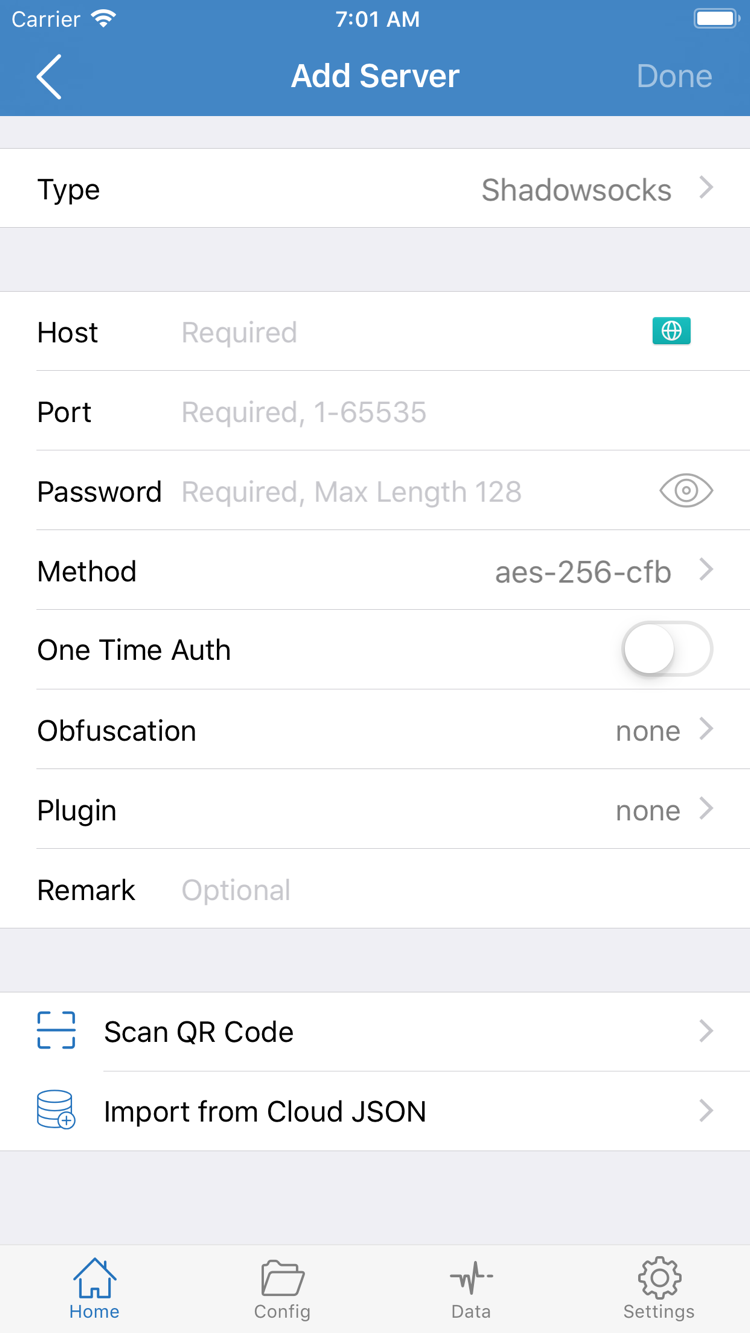
After installing the app on the new device, reimport your saved subscription link, server details, or configuration file. Get subscription links from your service provider. Purchase history does not include server passwords, node lists, or complete rules; restoring the app alone will not restore those details if you did not back them up.
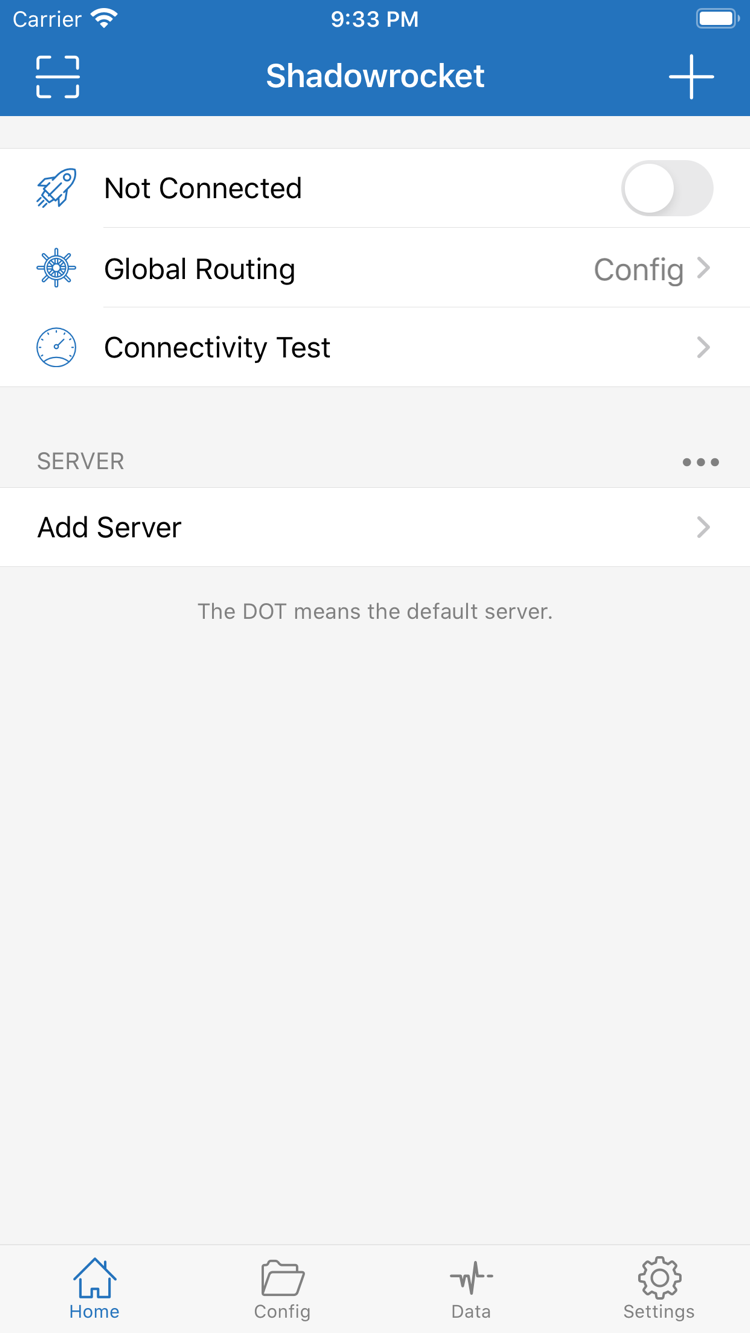
Before migrating, confirm that your backup can be read. After migration, check server names, Global Routing, Config, and On Demand settings. Before connecting, verify the selected server and configuration so you do not keep using details that have been disabled on the old device.
Download installers again for computers and Android
For a new Mac, Windows, Android, or Linux device, download the installer for its architecture from this page, follow the installation steps, then import your backup. The new computer may not use the same architecture as the old one; for example, Mac processors can differ between devices. If the old device still opens the app, back up your settings and confirm they work on the new device before removing data from the old one.